ChristophSuppan
IT support, homelab and photography
I keep systems running. My own included.

About me
I am Chris. Outside of work I mostly spend my time with Linux, networking, virtualisation and everything you probably do not really need at home.
A lot of the homelab exists because I wanted to try something and then decided it could stay.
Most of the time I am out with my wife Nicole and Balu, and the camera is almost always with me. Nicole takes photos too, and often better ones than I do.
Timeline
Hover over or click an entry to see details and its time span.
Electrical engineering
2013 to 2018
Building installation, building automation, maintenance and troubleshooting.
Office support
2018 to 2022PIDAS
Phone support for office workplaces: software, accounts, printers and everything that gets stuck in day-to-day office work.
Production support
2022 to 2024ATOS
On site in production: analysing and fixing critical IT incidents, deploying production PCs and network components.
1st and 2nd level support
since 2024ATOS
Solving incidents and complex requests, coordinating escalations, onboarding new colleagues.
Homelab
since 2020/21private
Started with a Synology DS220+, today three Proxmox nodes with their own network, backup and monitoring.
Homelab
The start
Synology DS220+, since 2020/21
I only wanted a NAS. It obviously didn’t stay that way.
The DS220+ first held photos and files, then the first Docker containers. Today it serves as storage and as one of the backup targets for the cluster.
Network
OPNsense and VLANs
The network is split into several VLANs, among them management, home, guests and cameras. Between them, only what is actually needed is allowed.
OPNsense is the firewall and handles routing. DNS runs through my own resolver with an ad filter.
Reverse proxy and login
Traefik and Authentik
Web services run through Traefik, and the TLS certificates renew automatically. Where it makes sense, Authentik takes care of the login.
That way I can put new services under my own domain fairly quickly, without rebuilding the setup every time.
Proxmox
Three nodes with their own cluster network
Three Proxmox nodes, one of them a frugal mini PC. VMs and containers are split by task and can be maintained independently, and updates are rolled out one node at a time.
Backups
3-2-1, one copy off-site
A Proxmox Backup Server backs up the VMs and containers every day. A second copy sits on the NAS, a third goes off-site, encrypted.
Restores have been tested several times and the steps are documented. With backups in particular, I wanted to be sure they work when it counts.
Operations
Monitoring and docs
Netdata watches the systems and sends alerts to my phone, Uptime Kuma checks from the outside whether the services are reachable. During a power cut, a UPS shuts the cluster down cleanly.
Changes and restore procedures are documented in Markdown. Three months down the line, that answers the question of what I actually did back then.
Photography
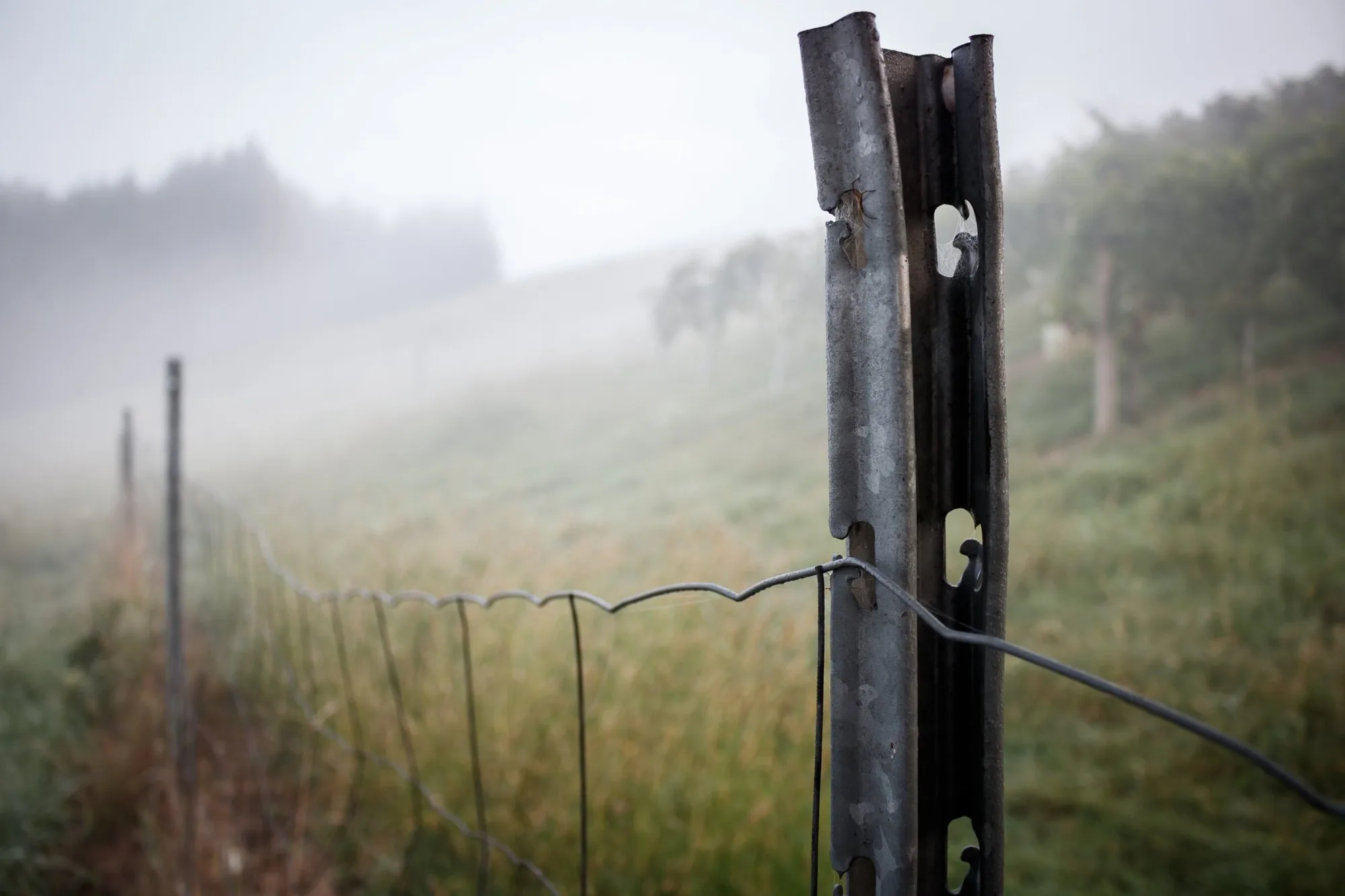
When I am not sitting in front of a screen, the camera usually comes along. Lots of landscapes, often in fog, travel and whatever crosses my path.



















Für Flummi
In den stürmischen Phasen warst du mein Anker.
Du hast mich gehalten, wenn ich es selbst nicht konnte.
Ohne dich würde hier nichts laufen: kein Server, kein Homelab und schon gar nicht ich.
Danke. Für alles.
Tips
What I keep explaining, in short. For everyone who does not deal with tech every day.
Passwords
A separate one for every account
Please do not use the same password everywhere. If it is stolen from one provider, attackers often automatically try it on other services as well.
I recommend a separate password with at least 16 characters for every account. Of course nobody can remember all of them. That is exactly what password managers are for: they create strong passwords and store them for you.
If you want to try it out, you can also use my password generator.
Two-factor authentication
Especially for your email account
If a service offers two-factor authentication (2FA), I would definitely turn it on. Especially for your email account, because it can often be used to reset the passwords of your other accounts.
Ideally use an authenticator app or, where supported, a passkey. SMS codes are still better than no extra protection at all.
Important: do not approve sign-in requests you did not start yourself. Not even if the request keeps popping up several times in a row.
Calls from so-called support
Microsoft, your bank and others
If someone suddenly calls and claims to be from Microsoft, your bank or another well-known company, I would always be careful.
Especially with fake Microsoft support, scammers keep claiming that your computer is infected and that they urgently need to connect to it.
Do not let anyone access your computer just like that, and do not pass on passwords or confirmation codes.
If you are unsure, hang up and call the company yourself on its official number. Look that number up yourself, for example on your bank card or the official website, not from the call or a text message.
Warning messages in the browser
“Your computer is infected”
You may have seen a web page suddenly claiming your computer is infected. Often everything flashes, an alarm sound plays, or you are told to call a phone number right away.
Messages like that usually come from fraudulent websites and do not mean that anything is actually wrong with your computer.
Do not call the number shown and do not install anything offered there.
Just close the tab or the browser. If the window will not close, on Windows you can open the Task Manager with Ctrl + Shift + Esc and end the browser there.
Links in emails and text messages
Bank, invoice, parcel
A message from your bank, a supposedly unpaid invoice or a parcel that could not be delivered. These messages can look pretty genuine these days.
So my tip: if you get an unexpected message asking you to sign in or pay, open the app or website yourself instead.
Do not rely on the sender name alone. It can be faked too.
And if something seems off, it is better to ask one time too many.
Updates
Do not put them off forever
I know, updates usually show up exactly when you have no time for them. Still, you should not put them off forever.
Security updates in particular close known vulnerabilities, some of which are being actively exploited.
Ideally turn on automatic updates for Windows, your smartphone and your browser. If a restart is needed, do it fairly soon.
For older devices, I would also check whether they still get security updates at all. If not, it is better not to use them for sensitive things like online banking.
Backing up photos and important files
External drive or cloud
Photos, documents and other personal files are often worth a lot more than the computer they are stored on.
That is why I would always back up important data. For example on an external drive that you unplug again after the backup, or with a suitable cloud backup service.
The minimum: regularly copy your important folders to an external drive. Copying means the files also stay on your computer. If you move them there, you still only have them once, just somewhere else, and that is not a backup.
Automatic syncing does not necessarily replace a proper backup either. What gets deleted on your computer often disappears there too.
Check every now and then that your backup works and that files can actually be restored.
Do not let anyone rush you
When it suddenly gets urgent
If someone claims you have to act right now, because otherwise your account will be locked, money will be lost or something bad will happen, be especially careful.
Many scammers work with exactly this kind of time pressure. They want to stop you from thinking it through calmly or asking someone for advice.
Take the time to check the situation. For important matters you can always reach the company yourself through a known, official contact.
Contact
Write to me.
Questions about tech, the homelab, a photo, or just to say hello: the message comes straight to me.